Homebrain PaceKeeper
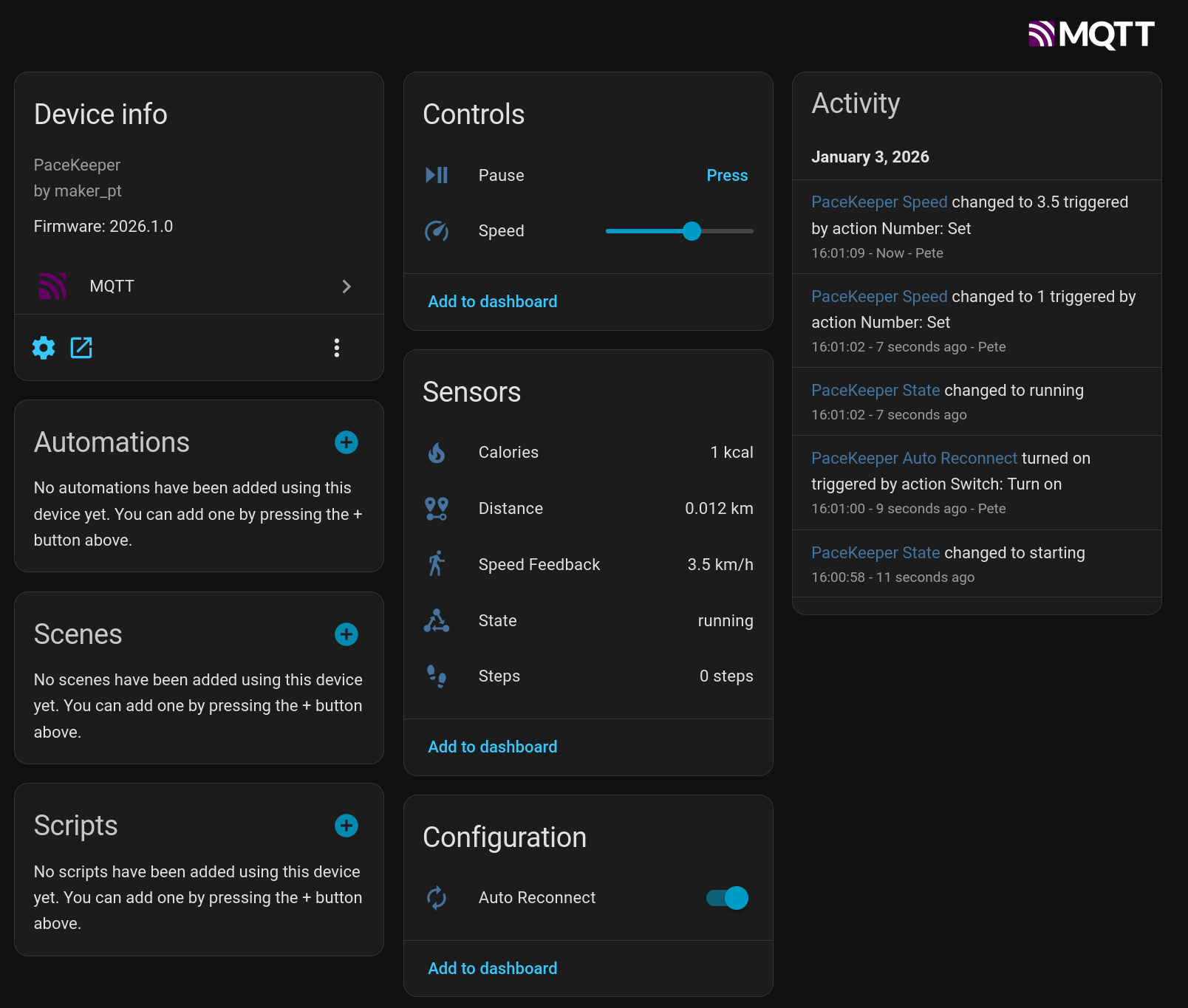
PaceKeeper is an ESP32 bridge that connects via Bluetooth to your WalkingPad and exposes the device via MQTT to Home Assistant.
Watch the video:
Supported Hardware
- PitPat-T01 Treadmill – Superun BA06-B1 [AliExpress]
Required Tools
- ESP32 – I’m using a Wemos S3 Mini, but any ESP32 with Bluetooth should do [AliExpress] [Amazon]
- VS Code with PlatformIO
Setup
Find the Bluetooth Address of the Device
Get an app like nRF Connect – this app allows you to view Bluetooth connections on your phone.
- Turn the device on with the power switch
- Either use the app to initialize the device or follow the steps in the section “Cloud Free Usage”
- Open nRF Connect on your phone
- The device should show up as
PitPat-T01 - Write down the Bluetooth address (it should look like
AA:BB:CC:11:22)
Preparation of Home Assistant for MQTT
- Add the MQTT integration and follow the setup steps:
https://www.home-assistant.io/integrations/mqtt
Project Compilation
- Set up VS Code with PlatformIO
(https://docs.platformio.org/en/latest/integration/ide/vscode.html#installation) - Clone this repo and open it in VS Code
- Rename
config.h.sampletoconfig.h - Open the file and set the configuration values for MQTT and the Bluetooth address from the previous step
- Connect the ESP32 with a USB cable (you might have to hold RST and BOOT while plugging it in)
- Compile and flash the project via PlatformIO → Upload and Monitor
- If everything goes well, you should see a bunch of log messages, and a new device called
PaceKeepershould show up in your Home Assistant
Cloud Free Usage – Start Without WiFi, App, and Cloud Account
You’ll get a remote with it; it has +, −, and play/pause buttons. However, when you turn it on, it initially reacts with a long, annoying sound to any button press. When you turn it on with the power button, it will also take a while before showing display information, first lighting up all display segments.
That’s where you strike.
Turn it on and quickly press (+); you will be greeted with a short sound. Then press −, −, −, +, +, wait 20 seconds, turn it off and on again. It should now display something else, and you can start using it.
Sequence
- Turn on using the
powerswitch on the device - Press
-on the remote 3× - Press
+on the remote 1× - Press
+on the remote for 3 seconds
Each correct input will be confirmed by a short, happy sound. Each incorrect input will be confirmed by a long, annoying sound.
GitHub Project Link
https://github.com/peteh/pacekeeper
Acknowledgements
I built this with the help of many other people who put effort into reverse-engineering the Bluetooth protocol.
Web Bluetooth App (Python)
Python web interface to control the treadmill via Bluetooth but for another model.
GitHub project:
https://github.com/azmke/pitpat-treadmill-control
Web Bluetooth App (JavaScript)
A Web Bluetooth app written in JavaScript. Fully supports the B1 as well.
GitHub project:
https://github.com/KeiranY/PitPat-WebBT/
Zwift Integration by qdomyos
There is some work in a B1 sub-branch.
Source file:
https://github.com/cagnulein/qdomyos-zwift/blob/master/src/devices/deeruntreadmill/deerruntreadmill.cpp
Further Notes
Deerrun and Superun seem to use the same OEM hardware, so it’s likely that those devices might work as well.